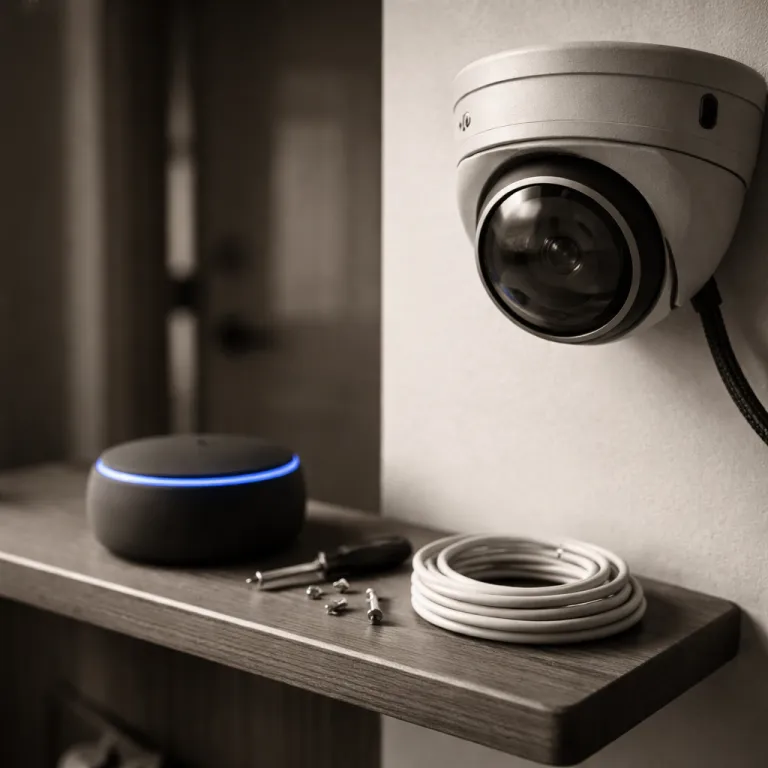
Choosing cameras that actually work with Alexa routines
Most people start Alexa security camera routine setup after they already bought cameras. That is backwards, because not every camera or security system exposes the same controls to the Alexa app, and those gaps decide what your routines can really do. Before you set a single routine, you need to match specific camera models with the way you want your Echo devices, lights, and other smart devices to behave when motion is detected or when you leave home.
Ring, Blink, and most newer Amazon Alexa compatible cameras integrate most cleanly with Alexa routines. Ring Stick Up Cam and Ring Floodlight Cam let you use motion-detected events as a trigger, then turn on porch lights, send announcements to every Echo device, and even arm or disarm a Ring security system as part of a timed routine. Blink Outdoor 4 works well for basic live view on an Echo Show and simple motion announcements, but its motion-detected events sometimes arrive late, which makes it less reliable as a primary trigger for a tight routine set that must fire within seconds.
Arlo Pro 5S, Nest Cam Battery, Eufy SoloCam S340, and Reolink models all work with Alexa devices, but the depth of integration varies. Arlo and Eufy usually let you show the camera feed on an Echo Show screen and use motion as a trigger, while many Reolink cameras only support live view and ignore routines Alexa wants to run from motion. If you are considering wide-angle coverage with a Reolink Duo model and want to understand how it behaves in a more advanced security system, look at a detailed explanation of how Reolink Duo 3 WiFi works with Blue Iris before you commit to a full Alexa security camera routine setup.
Ring users get the most polished experience inside the Amazon Alexa ecosystem, especially when they also use Ring Alarm as their main security system. Non-Ring cameras can still be excellent, but you must check whether the Alexa app lists them under devices with motion events available as a trigger, not just as a passive live view device. If the app only lets you tap to view the camera and does not expose motion or person detection in routine settings, your automation options will stay limited no matter how smart the camera looks on paper.
Step by step: building a leaving home routine that arms cameras
A strong Alexa security camera routine setup starts with a leaving home routine that arms your cameras automatically. You want to set this once in the Alexa app, then forget about it while your Echo devices quietly lock things down every time you walk out the door. The goal is simple, but the routine settings you choose will decide whether your security system actually arms when you need it or silently fails in the background.
To create a basic leaving home routine in the Alexa app:
- Open the Alexa app on your phone, tap the menu icon, then tap Routines.
- Tap Create routine, give it a clear name like Leaving Home Cameras, and choose a trigger under When this happens (voice phrase, schedule, or your phone’s location).
- For most people, a geolocation-based routine that arms cameras when the last household member leaves works best, because it avoids false alarms when one person is still home but another tries to set the security system by voice.
After you set the trigger, tap Add action, then choose Smart Home to control your cameras and other devices. If you use Ring, you can select your Ring Alarm security system and set it to Away mode, which automatically arms all linked cameras and sensors in one step, while non-Ring cameras usually appear as individual devices that you must configure one by one. For example, you might set Arlo Pro 5S cameras to arm, turn off indoor Eufy SoloCam S340 units for privacy, and turn on exterior lights for the first 15 minutes after departure to simulate activity.
Next, add actions that involve your Echo devices so you get clear feedback that the routine actually ran. You can have one Echo device near the door say a brief phrase like Cameras armed, or use multiple Echo devices to play a short chime when the security system changes state. If you rely on smart locks, include them in the same Alexa routine so that when you tap your phone to leave, the app tap sequence locks doors, arms cameras, and adjusts lights in a single, predictable flow.
Using motion to trigger lights, announcements, and recordings
Once your leaving home routine works, the next Alexa security camera routine setup step is using motion-detected events as a trigger. This is where cameras stop being passive recorders and start acting like active sensors that drive your smart lights, Echo devices, and other smart devices Amazon sells. Done well, a single camera can quietly orchestrate a whole perimeter security system without you opening any app.
In the Alexa app, go back to the menu icon, tap Routines, and create routine entries for each key area such as front door, driveway, and back garden. Under When this happens, select Smart Home, then choose the camera or motion sensor that should act as the trigger, making sure the app shows motion detected as an available event. If your camera does not expose motion to routines Alexa can read, you may need a separate motion sensor or a different camera model, because no amount of routine settings can fix a missing trigger.
For a front door routine, you might set the trigger to motion detected on a Ring Stick Up Cam, then add actions to turn on porch lights, announce Visitor at the front door on all Echo devices, and start recording if your camera supports on-demand clips. You can also add a condition so this Alexa routine only runs after sunset, which prevents your lights from turning on unnecessarily during the day and keeps your smart home from feeling over-automated. If you use a more advanced panel such as an IQ Panel to coordinate your security systems, you can still let Alexa handle the voice and lighting side while the panel manages professional monitoring, as explained in many guides about how IQ Panel enhances your home security camera experience.
For a driveway camera like Arlo Pro 5S or Eufy SoloCam S340, you might create routine actions that turn on floodlights, start a short siren sound on one Echo device in the hallway, and send a push notification through the Alexa app. Keep in mind that every extra action adds a fraction of a second of latency, so test whether your lights turn on quickly enough when motion is detected at night. If you notice delays, reduce the number of actions, move the Echo devices closer to your router, and use feedback and improve options in the app to report unreliable behavior to help support teams refine the integration.
Guard mode: combining Echo sound detection with cameras
Alexa Guard, now folded into broader Amazon Alexa security features, lets your Echo devices listen for glass break and smoke alarm sounds. When you combine that with a solid Alexa security camera routine setup, you get a second layer of detection that does not depend on any single camera or motion sensor. This matters when a burglar avoids your usual paths or when a fire alarm goes off in a room without a camera.
To use this, open the Alexa app, tap the menu icon, and look for Guard or security settings depending on your region. Once enabled, you can set your Echo devices to listen when you say a specific phrase or when a leaving home Alexa routine runs, so the same routine that arms your cameras also arms sound detection. If the Echo device hears glass breaking or a smoke alarm, it can send a notification and, in some regions, trigger additional routines Alexa supports for lights and announcements.
For example, you can create routine actions that, when Guard detects a suspicious sound, turn on all interior lights, flash exterior lights, and show the nearest camera feed on an Echo Show screen. In the routine settings, select the Guard event as the trigger, then tap Add action and choose Smart Home to control lights, followed by Custom to have Alexa say a specific phrase through your Echo devices. This layered approach means that even if a camera fails or its motion-detected sensor misses an event, your security system still has a chance to react to sound.
Guard is not a full replacement for a monitored security system, but it is a useful backup when you already own several Alexa devices. It also helps support your overall risk reduction strategy by making intrusions more visible and noisy, which many burglars dislike. Think of it as a way to turn every idle Echo device into a basic sensor that complements your cameras rather than as a standalone alarm.
Limitations, latency, and the Ring versus non Ring gap
Alexa security camera routine setup is powerful, but it is not magic, and you will hit limits. The most obvious constraint is latency, which is the delay between motion detected by a camera and the moment your lights turn on or your Echo devices speak. In real homes with average Wi-Fi, that delay can stretch from one second to five, which feels long when someone is already at your door.
Ring cameras and Ring Alarm usually show the lowest latency inside the Amazon Alexa ecosystem, because they share the same cloud infrastructure and are designed as a unified security system. When you set a Ring camera as a trigger in the Alexa app, the motion event often reaches your routine faster than with Arlo, Eufy, or Reolink, which sometimes route events through their own servers before Alexa sees them. That is one reason Ring users enjoy a smoother experience when they create routine automations that must feel instant, such as turning on driveway lights the moment a car pulls in.
Non-Ring cameras can still work well, but you must test each Alexa routine under real conditions at night, when you care most about performance. Check whether two-way audio works through your Echo devices, because some cameras only support live view without letting you speak back through the camera using an Echo Show screen. If you notice that live view takes too long to load or that the video looks worse than advertised, remember that what matters is not the claimed resolution but what the camera actually captures at 3am.
Another limitation is that some security systems expose only arm and disarm controls to Alexa, not granular sensor events. That means you might be able to set Away mode from an Echo device but cannot use a specific door sensor as a trigger in routines Alexa can run. When you hit these walls, consider whether you want to keep Alexa as the main brain or let a dedicated panel or hub handle low-level events while Alexa focuses on voice control and visible actions like lights and announcements.
Privacy, camera blocking, and making routines people friendly
A well planned Alexa security camera routine setup should protect your home without making it feel like a surveillance bunker. That means using routines not only to arm cameras but also to turn them off or block them when privacy matters, especially for indoor spaces. The best security systems respect the people who live in the home as much as they deter intruders outside it.
Use the Alexa app to create routine entries that disable indoor cameras when you are home and re-enable them when you leave. For example, you can set a Goodnight Alexa routine that turns off living room cameras, dims lights, and arms only exterior cameras, while a Morning routine might turn on kitchen lights and keep cameras off until the last person leaves. If you want a deeper dive into how camera blocking and masking zones affect your safety and privacy, read about what camera blocking in home security means and why it matters before you finalize your routine settings.
On Echo Show devices, use the screen select options to control when live views appear automatically. You do not want a camera feed popping up every time motion is detected in a busy room, so set your routines Alexa offers to show video only for critical zones like the front door or driveway. That way, your Echo devices remain helpful without turning into constant surveillance screens that distract you and your family.
Finally, pay attention to how guests experience your smart home, because a good security system should feel reassuring, not intrusive. Use Alexa routines to turn on gentle hallway lights when motion is detected at night instead of blasting full brightness, and keep voice announcements short and neutral. If something about your setup feels annoying or invasive, use the feedback and improve tools in the app and adjust your routine set until the system quietly supports daily life instead of dominating it.
Testing, troubleshooting, and keeping your routines reliable
Even a perfect Alexa security camera routine setup on paper can fail if you never test it under real conditions. Reliability comes from deliberate testing, small adjustments, and a willingness to remove clever but fragile automations that break too often. Your goal is not the most complex routine set, but the one that works every single time without drama.
Start by testing each Alexa routine individually during the day, then again at night when lighting and Wi-Fi conditions change. Walk past each camera to confirm that motion-detected events actually trigger the right actions, such as turning on lights, sending announcements to Echo devices, or changing the state of your security system. If something fails, check whether the Alexa app shows the routine as having run, which helps you isolate whether the problem is with the trigger, the routine logic, or the target device.
When you troubleshoot, change one variable at a time and keep notes in a simple document. Move Echo devices closer to your router, reduce the number of actions in a single Alexa routine, or adjust motion sensitivity on the camera to reduce false triggers that flood your history. If you still see inconsistent behavior, contact help support from the camera manufacturer and from Amazon, because sometimes the issue lies in how devices Amazon certified for Alexa handle cloud events.
Over time, prune your routines Alexa runs so that only the most useful ones remain, and retire any that confuse family members or generate too many alerts. A lean, well tested set of routines will always beat a sprawling, fragile setup that only you understand. In the end, the real measure of success is whether your smart home quietly has your back when it matters, not how many automations you can cram into the Alexa app.
Key figures on smart cameras and Alexa routines
- According to Parks Associates, more than 30% of US broadband households own at least one smart home security device, yet fewer than half of those users report using automation routines regularly, which shows a large gap between installed hardware and active Alexa security camera routine setup. This figure comes from Parks Associates’ recurring smart home adoption surveys of US broadband households, which combine online questionnaires with panel-based sampling.
- Consumer surveys from the Security Industry Association indicate that households using motion-triggered lighting routines reduce nighttime false alarms by around 20% compared with homes relying only on camera notifications, highlighting the value of pairing cameras with smart lights through Alexa routines. These findings are based on self-reported incident data collected from residential users and integrators in annual SIA research reports.
- Field tests by independent reviewers have measured average live view latency on Ring cameras through Echo Show devices at roughly 2 seconds, while some third-party cameras can take 4 to 6 seconds, which directly affects how responsive your routines feel when motion is detected. Reviewers typically measure this by filming a stopwatch while triggering motion and timing the delay until video appears on the Echo Show screen.
- Data from multiple smart home platforms suggest that geolocation-based leaving home routines have completion rates above 90%, whereas manually armed security systems often remain disarmed in more than 25% of departures, underlining why automated Alexa routine triggers matter for real world protection. These platform metrics are usually aggregated from anonymized usage logs that compare scheduled or location-based automations with manual arming events.
FAQ about Alexa routines and security cameras
Which security cameras work best with Alexa routines ?
Ring cameras integrate most deeply with Amazon Alexa, offering fast motion-detected triggers, tight links to Ring Alarm, and reliable live view on Echo Show devices. Blink, Arlo, Eufy, and some Reolink models also work, but they may expose fewer controls to the Alexa app and can show more latency in routines. Before buying, always check whether the camera supports motion events and arm or disarm actions inside Alexa routines, not just basic live view.
How do I make Alexa arm my cameras automatically when I leave ?
Use the Alexa app to create routine automation with a location or schedule-based trigger. Under When this happens, choose Location or Schedule, then add actions to arm your cameras or set your security system to Away mode, and optionally lock doors and adjust lights. Test the routine several times to confirm that your Echo devices announce the change and that the cameras actually switch modes when you cross your home boundary.
Can Alexa turn on lights when my camera detects motion ?
Yes, if your camera exposes motion-detected events to Alexa, you can use them as a trigger in routines. In the Alexa app, create routine automation, select the camera under Smart Home as the trigger, then add actions to turn on specific smart lights or groups. Many homeowners use this to light porches, driveways, and hallways automatically at night, reducing both tripping hazards and the chance of someone approaching unnoticed.
Is Alexa Guard enough to replace a monitored alarm system ?
Alexa Guard and related sound detection features are useful, but they are not a full replacement for a professionally monitored security system. Guard can listen for glass break and smoke alarms through Echo devices and trigger routines or notifications, yet it does not dispatch emergency services on its own in most regions. For critical protection, use Guard as a second layer alongside cameras and a dedicated alarm panel rather than as your only line of defense.
How can I reduce false alerts from Alexa camera routines ?
Start by adjusting motion sensitivity and activity zones in your camera app so that passing cars or tree branches do not constantly trigger events. Then refine your Alexa routines by limiting them to certain times of day, such as only after sunset, and by using announcements on fewer Echo devices to keep noise down. Regularly review your routine history and remove or tweak any automation that fires too often, aiming for a small, reliable set of routines instead of many noisy ones.