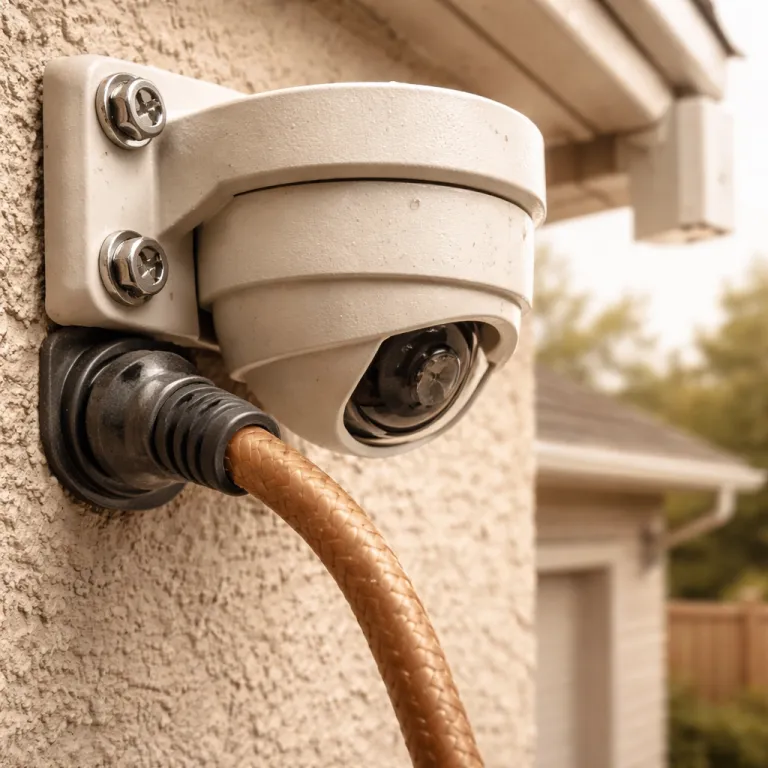
When security cameras fail, start with the wifi signal
Your security camera rarely dies first; the wifi link usually does. Most security camera wifi connection problems start where the camera meets a weak wireless network, not where the lens meets the driveway. When your wifi camera freezes, stutters, or will not connect, the real culprit is often distance, walls, and interference between the router and the cameras.
Think about the last time your security cameras glitched just as someone walked up to the door. The camera app probably showed a spinning wheel, a low signal strength icon, or a vague connection error while the wifi signal quietly dropped below what the camera could handle. Once the wifi network falls under roughly −70 dBm RSSI, many cameras begin a loop of disconnecting, trying to reconnect to wifi, and then failing with the same connection error message.
Dual band routers and dual band cameras add another twist to these security camera wifi connection problems. A camera connecting on a 2.4 gigahertz band may roam or be pushed toward a 5 gigahertz band, and that network handoff can break a fragile connection. When the camera router combination keeps bouncing between bands, the camera keeps dropping offline, the camera app logs show repeated attempts to connect to wifi, and you are left wondering whether the camera or the wireless security system is actually at fault.
Diagnosing wifi signal, interference, and router settings
Before buying anything, you should check what the camera sees from the router. Open the camera app for your Ring Stick Up Cam, Arlo Pro 5S, Nest Cam Battery, Eufy SoloCam S340, or Blink Outdoor 4 and look for a wifi signal or signal strength indicator. Many security cameras hide this under advanced settings, wifi network details, or a diagnostics page that also shows firmware versions and connection history.
Next, use a wifi analyzer app on your phone to walk the route between the router and each security camera. Stand where the wifi camera is mounted, hold the phone next to the camera, and check the wifi signal in dBm (received signal strength indicator, or RSSI) while you slowly turn in place. If the reading hovers above about −65 dBm, your wireless security connection is probably fine, but once it dips below about −70 dBm RSSI, the camera keeps struggling to stay connected, especially when other devices compete for the same network.
Interference matters as much as distance, so map obstacles between the router and the cameras. Metal shelves, thick brick walls, aquariums, and even microwaves can block a 2.4 gigahertz or 5 gigahertz signal and create dead zones that trigger security camera wifi connection problems. For a deeper look at how sensors behave when the wifi network is marginal, read this guide on how an access point upgrade enhances a home security camera setup, then return to your own router settings to see whether channel changes or band steering options might reduce interference.
Use this quick checklist as you test your network:
| Wifi reading / factor | Rule of thumb | Example tools |
|---|---|---|
| Signal stronger than −65 dBm | Good for most HD security cameras | Wifi analyzer apps on iOS or Android |
| Signal between −65 and −75 dBm | Borderline; expect occasional dropouts | Router admin page, camera diagnostics |
| Signal weaker than −75 dBm | High risk of camera disconnecting | Consider moving router or adding hardware |
These thresholds line up with typical vendor guidance; for example, Arlo and Ring recommend keeping camera RSSI above roughly −65 to −70 dBm for reliable streaming.
Free fixes first: placement, settings, and simple resets
The cheapest way to solve security camera wifi connection problems is to move things around. If your router sits in a corner behind the television, the camera router path probably crosses several walls and appliances before the wifi signal reaches the driveway. Shift the router toward the center of the home, raise it off the floor, and aim it roughly toward the most distant security camera.
Sometimes the camera wifi link fails because of software, not distance. Log into the router settings page, update the firmware, and make sure the wifi security mode uses WPA2 or WPA3 rather than older, unstable options that confuse some cameras. While you are there, check that the 2.4 gigahertz band is enabled, because many wifi cameras, especially budget models like Blink Outdoor 4 or Wyze cams, will not connect on a 5 gigahertz only network.
On the camera side, open the camera app and confirm the wireless password, SSID, and regional settings. If the camera keeps dropping offline, perform a controlled reset using the manufacturer instructions, then use a step by step guide such as this tutorial on connecting a Ring camera to wifi as a model for re pairing. When the camera setup process runs cleanly, the phone, the router, and the wifi network all agree on the same credentials, and many stubborn connection errors simply vanish.
Use this short troubleshooting sequence before you spend money:
- Measure RSSI at each camera and confirm it is stronger than about −70 dBm.
- Reposition the router and, if needed, slightly adjust camera angles to reduce obstacles.
- Update router and camera firmware, then reboot both devices in order: modem, router, cameras.
- Verify SSID, password, and wifi security mode, and re add the camera if connection data looks corrupted.
When you need hardware: extenders, mesh, and smart hubs
If free fixes do not stabilize the connection, the next step is targeted hardware. A basic wifi extender placed halfway between the router and the most distant security camera can lift signal strength enough to stop random drops. Keep the extender on the same SSID and password as the main wifi network so the cameras and other devices see one continuous wireless security environment.
Extenders are cheap, but they can add latency and create new security camera wifi connection problems when cameras roam between the main router and the extender. Mesh wifi systems such as Eero or TP Link Deco handle roaming better by using multiple nodes that share one network brain and coordinate which node serves each wifi camera. Place a mesh node within about ten meters of the garage or back yard camera, and you often eliminate the disconnect reconnect pattern that plagues single router setups.
Some ecosystems use dedicated hubs to manage wifi security and offload traffic from the main router. Arlo SmartHub and Eufy HomeBase act as intermediaries between the cameras and the home network, handling video streams, firmware updates, and connection retries so the camera app on your phone sees a stable feed. These hubs can also reduce interference by keeping camera traffic on a private radio channel, which means fewer devices fight for the same wifi signal and fewer moments where a camera connection attempt fails at the worst possible time.
Permanent reliability: 2.4 versus 5 ghz and going beyond wifi
At some point, you may want a fix that does not depend on radio waves. For critical views such as a front gate or a side alley, a Power over Ethernet, often called PoE, camera removes wifi from the equation entirely and uses a single cable for both power and data. When a PoE camera connects directly to the router or a switch, there is no wireless interference, no band steering, and no need to reset a flaky wireless connection after every storm.
For the cameras that must stay wireless, choose the right band for the job. A 2.4 gigahertz connection travels farther and penetrates walls better, which helps when a security camera sits twenty meters from the router, but that same band is crowded with phones, tablets, and smart home devices that can degrade wifi signal quality. A 5 gigahertz band offers higher throughput and less congestion, yet it drops off faster with distance, so a wifi camera on that band may show perfect signal strength near the house and then report connection errors once you mount it above the driveway.
Modern dual band models such as Arlo Pro 5S can use both bands intelligently, but only when the router settings and firmware are tuned correctly. Make sure band steering is either disabled or working reliably, and check logs in the camera app for repeated connecting wifi events that suggest the camera keeps bouncing between bands. For a deeper understanding of how motion detection and connectivity interact, this explainer on how a passive infrared sensor elevates modern home security cameras shows why a stable network matters more than the advertised resolution, because what counts is not the claimed 1080p, but what the camera actually captures at three in the morning.
FAQ
Why does my security camera keep disconnecting from wifi at night ?
Nighttime disconnections usually come from marginal wifi signal strength combined with extra interference. When infrared night vision turns on, some cameras draw slightly more power and push the wireless radio harder, which exposes weak links between the camera and the router. Check signal levels at the camera location, move the router or add a node, and update firmware on both devices to reduce these security camera wifi connection problems.
Should I use 2.4 ghz or 5 ghz for my wifi camera ?
Use 2.4 gigahertz when the camera is far from the router or separated by several walls, because that band travels farther and handles obstacles better. Choose 5 gigahertz when the camera is close to the router and you want higher bitrate video with less congestion from neighboring networks. Many modern security cameras support both, so test each band and keep whichever gives a stable connection without frequent reconnects.
Will a wifi extender always fix my camera connection problems ?
A wifi extender can help when the camera is just beyond the router range, but it is not a cure all. Extenders repeat the signal, which can add delay and sometimes confuse cameras as they roam between the main router and the extender. If you still see disconnecting errors after adding an extender, a mesh system or a wired PoE camera will usually be more reliable.
Why does my camera say the wifi password is wrong when it is correct ?
This message often appears when the camera connects to a different wifi network with the same name or when the router changes security mode. Check that the SSID, password, and wifi security type in the router settings match what you enter in the camera app. If the camera still will not connect, perform a factory reset on the camera and re add it as a new device to clear any corrupted connection data.
When should I give up on wifi and use a wired security camera ?
If you have moved the router, tuned settings, tried extenders or mesh, and still see daily dropouts, a wired option is worth the effort. PoE cameras shine for driveways, gates, and other critical views where you cannot risk losing footage during an outage. Running one cable now often saves years of frustration with unstable wireless security connections.
References
Consumer Reports: home security camera reliability tests; Wirecutter: outdoor wifi camera reviews and long term testing; manufacturer support pages for Ring, Arlo, Google Nest, Eufy, and Blink setup and troubleshooting guides; vendor documentation on recommended RSSI levels for stable wifi camera streaming.