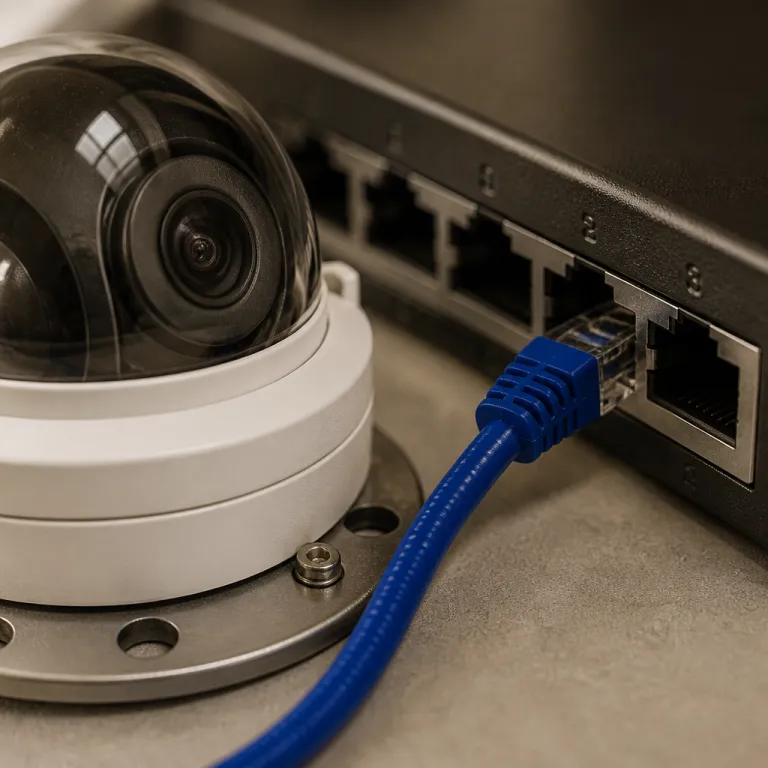
Why pair Home Assistant with UniFi Protect for a local camera stack
Home Assistant and UniFi Protect form a rare combination that keeps every camera stream inside your home. This pairing turns your UniFi security cameras into a privacy focused system where the network video recorder, automations, and live stream dashboards all run locally without routine cloud relays. For a privacy first buyer who already has Home Assistant installed, this kind of local smart security camera setup offers control that subscription ecosystems like Ring or Arlo simply cannot match.
UniFi Protect runs on a UniFi Dream Machine SE, a Cloud Key Gen2 Plus, or newer UniFi OS Consoles such as the UniFi Dream Machine Pro and UniFi Cloud Gateway Ultra, which all act as a local NVR and as the central source for compatible cameras. Most UniFi G4 or G5 models expose an RTSP stream and metadata over wired Ethernet, so the image quality stays consistent and the number of frames per second does not collapse when Wi Fi is congested. Because the NVR and Home Assistant server sit on the same LAN, network access stays under your control and object detection events never need to transit a third party cloud, though you should confirm RTSP support, firmware status, and any model specific limitations for each camera before purchase.
Compared with a Ring Stick Up Cam or Arlo Pro 5S, the UniFi and Home Assistant integration trades slick mobile apps for predictable ownership. You pay once for hardware, then use open source tools like the Frigate add on or native Home Assistant object detection to enrich the live stream without renting features through monthly fees. The result is a local Home Assistant camera system where your assistant automations, your security recordings, and every user password stay on hardware you own.
Hardware you need for a fully local Home Assistant security camera local setup
Building this stack starts with choosing the right UniFi Protect hardware for your home. A UniFi Dream Machine SE suits many households because it combines router, PoE switch, and Protect NVR in one chassis, while a Cloud Key Gen2 Plus can add Protect to an existing network if you already own a separate firewall. In both cases, the NVR will host your security cameras, store every RTSP stream, and expose a clean integration endpoint that Home Assistant can read.
For the cameras themselves, UniFi G4 Bullet, G4 Pro, or G5 Flex models offer solid image quality and reliable infrared night vision without the subscription traps of Nest Cam Battery or Blink Outdoor 4. These PoE cameras avoid Wi Fi hand off drops that often plague wireless models like Eufy SoloCam S340, and they keep the camera bandwidth predictable because each cable carries both power and data. If you want a pan tilt style camera follow feature indoors, the UniFi G4 PTZ is an option, though it costs more than most consumer security cameras and demands careful configuration of motion zones and recording settings.
Your Home Assistant server can be modest, such as a Raspberry Pi 5, an Intel NUC, or a small virtual machine on a home lab server. What matters is stable network access to the UniFi NVR and enough CPU headroom if you plan to run Frigate for object detection on top of the Home Assistant integration. As a rough sizing example, a four camera Frigate deployment with 1080p streams and a detection frame rate of around five to ten frames per second per camera will benefit from a modern quad core CPU or a small GPU or Coral accelerator, plus fast storage for clips. If you intend to view a live stream on a television without HDMI from the NVR, you can route the feed through a small computer or streaming box, following the same principles used when you connect a security camera to a TV monitor screen without HDMI.
Connecting UniFi Protect to Home Assistant and tuning core settings
Once the hardware is running, the next step is to add the official UniFi Protect integration inside Home Assistant. In the Home Assistant configuration panel, you select Settings, open Devices & Services, choose Add Integration, search for UniFi Protect, then enter the NVR address, the user name, and the user password that you created specifically for this purpose. This dedicated user keeps your local camera stack safer because you can set permissions tightly and avoid sharing the main administrator password with any other assistant or automation.
After the integration completes, each camera appears as an entity that exposes a live stream, a still image, and several binary sensors for motion or object events. You can click a camera entity to open the stream camera view, embed it in a dashboard, or use the image as a thumbnail in notifications when motion occurs. For example, you might configure the front door camera so that every time motion is detected, Home Assistant sends a push alert with a snapshot image and a short clip from the RTSP stream, giving you context without opening the full app.
If you want deeper object detection, you can deploy the open source Frigate NVR as an add on or separate container and point it at the RTSP source from UniFi Protect. A minimal Frigate configuration might define a camera with an RTSP URL, detection frame rate, motion mask, and a number of frames to analyze per event, then map events back into Home Assistant. Frigate lets you define zones, tweak the number of frames used for analysis, and set false positive thresholds so that headlights or tree shadows do not constantly trigger alerts, similar to how advanced systems integrate wide angle cameras like a Reolink Duo with software such as Blue Iris for nuanced home security workflows.
Automations, privacy controls, and practical security workflows
With the integration in place, Home Assistant turns your cameras into sensors that can drive nuanced security automations. A simple example is using motion from a driveway camera to turn on exterior lights after dark, then turning them off again once no object is detected for a set duration. You can also link presence detection from phones or network access points so that the system arms itself when everyone leaves home and relaxes when a trusted user returns.
For privacy, you can create modes where interior cameras set false for recording whenever someone is home, while exterior cameras continue to record for perimeter security. In Home Assistant, this means defining input booleans or helper entities that represent states like Night, Away, or Guests, then using those states to control each camera entity and its stream. You can even build a dashboard tile that lets you pause a live stream or blur an image feed temporarily when you host visitors who are uncomfortable with always on security cameras.
Notification routing is another strength of a Home Assistant security camera local setup, because you decide exactly who sees what and when. For example, you might send rich notifications with object detection snapshots only to adults, while a simpler alert goes to a shared family tablet. If you live in an apartment and cannot drill for mounting, you can still combine adhesive mounts and careful placement, following the same principles used when you secure an apartment without drilling a single hole, then let Home Assistant and UniFi Protect handle the smart side of the system.
Limits, trade offs, and who should avoid this local camera stack
A fully local Home Assistant and UniFi Protect stack is powerful, but it is not for everyone. If you want a plug and play experience like a Nest Cam Battery or Blink Outdoor 4, with polished apps and instant remote access, this route will feel demanding. You must be comfortable managing network access, thinking about RTSP configuration, and occasionally troubleshooting why a stream camera entity is not updating its image correctly.
Remote viewing is possible, yet it usually relies on a VPN or tools like Tailscale rather than a vendor cloud relay. That means you will trade some convenience for the assurance that your security footage and every user password stay inside your own network perimeter. Voice assistant integration with Alexa or Google is also weaker than with Ring or Arlo, because Home Assistant acts as the primary assistant and many privacy first buyers intentionally avoid linking their security cameras directly to big tech platforms.
Cost is another trade off, though it often balances out over time. A four camera UniFi setup with a Dream Machine SE and mid range G4 cameras might cost between nine hundred and twelve hundred US dollars in total, while a comparable Ring or Arlo kit could reach similar hardware prices but then add several hundred per year in subscriptions for extended recording and object detection features. If you are not willing to maintain a Home Assistant security camera local setup, manage open source components like Frigate, and occasionally adjust settings or configuration when firmware changes, you may be better served by a simpler, cloud centric system.
FAQ
Is Home Assistant with UniFi Protect really more private than Ring or Arlo
Home Assistant with UniFi Protect is more private because all camera streams, recordings, and object detection events stay on your local NVR and Home Assistant server. Unlike Ring or Arlo, there is no default cloud storage, and remote access typically uses a VPN instead of vendor servers. This architecture reduces the number of third parties that can access your security cameras or metadata.
Do I need Frigate for object detection in a Home Assistant security camera local setup
You do not strictly need Frigate, but it adds powerful open source object detection that runs locally. UniFi Protect offers basic smart detection, while Frigate lets you fine tune zones, number of frames, and set false positive thresholds. Many privacy focused users run both, using Frigate events inside Home Assistant automations for more precise control.
Can I use non UniFi cameras with this local stack
You can mix other RTSP compatible cameras with Home Assistant by adding them directly or through Frigate, but they will not appear inside the UniFi Protect interface. In that case, Home Assistant becomes the main dashboard, and each RTSP source is handled as a separate camera entity. For a fully unified experience, most people stick with UniFi cameras for the core system.
What happens if my internet connection goes down
If your internet fails, a Home Assistant and UniFi Protect stack continues to record and operate on the local network. You can still view each live stream, access recordings, and run automations as long as your internal network and power remain available. Only remote access from outside the home and cloud dependent services are affected.
Is this setup suitable for someone without networking experience
This setup is best for users who are willing to learn basic networking concepts like IP addresses, VLANs, and RTSP configuration. The UniFi interface is friendlier than many enterprise tools, but it still expects you to understand how devices connect and how to secure user accounts. If that feels overwhelming, a simpler consumer security camera ecosystem may be a better fit.