
Defining access control entry in home security systems
What Does Access Control Entry Mean in Home Security?
When talking about home security cameras, the term access control entry (often shortened to ACE) refers to a digital record that defines what users or user groups can do with a specific object in your security system. This object could be a camera, a recorded video, or even a live feed. Each ACE specifies the type of access—such as view, modify, or delete—that is allowed or denied for a particular user or group.
How Access Control Works in Digital Security Systems
Access control is a core part of modern home security solutions. It uses a list of control entries, called an access control list (ACL), to manage permissions for each object in the system. These entries are not just random; they are carefully set up to ensure that only authorized users can access resources or data. For example, you might want to let family members view live camera feeds, but restrict access to recorded footage to just yourself.
- Access rights are defined for each user or user group
- Each ACE specifies what type of access is allowed or denied
- Objects inherit permissions from parent objects, unless a specific ACE overrides this
Why Understanding ACEs Matters for Homeowners
Knowing what access control entries are and how they work is essential for anyone managing a home security system. Without proper control, unauthorized users could gain access to sensitive data or camera feeds. On the other hand, being too restrictive might prevent you or your family from using the system effectively. If you want to learn more about how security policies can impact your camera usage, you can read about security policies and home camera usage.
Key Terms to Know
| Term | Definition |
|---|---|
| Access Control Entry (ACE) | A digital record specifying access rights for a user or group to a specific object |
| Access Control List (ACL) | A list of ACEs attached to an object, defining who can access it and how |
| Object | Any resource in the system, such as a camera, video file, or data stream |
| Active Directory | A system used to manage users and access rights, often found in larger or more advanced setups |

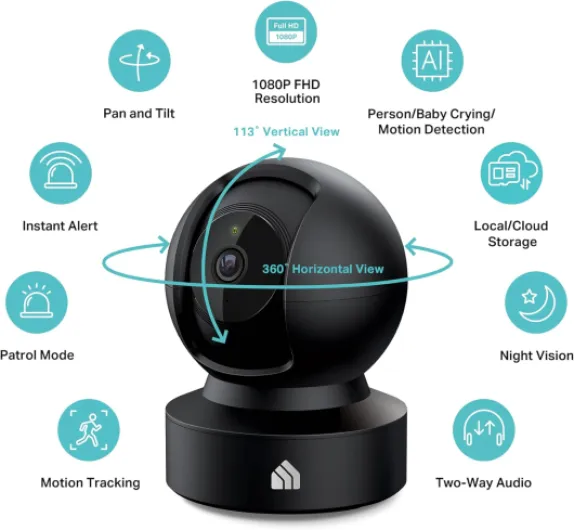
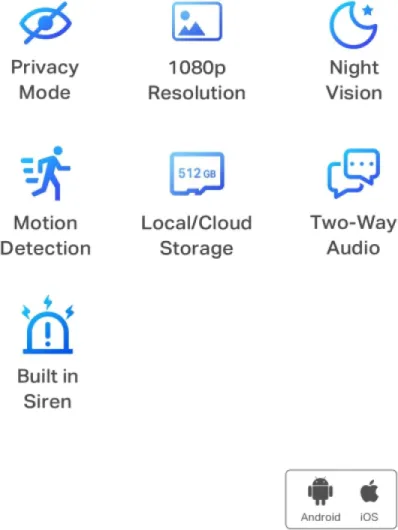
- + High Definition video at 1080p
- + Indoor use for homes and businesses
- + Compact white design
- + Easy to install and set up

How access control entry works with home security cameras
How permissions are assigned and enforced in camera systems
Access control entry (ACE) is a fundamental part of how home security cameras manage who can view, control, or modify footage and settings. Each ACE acts as a digital rule that tells the system what a user or group can do with specific objects, such as live video streams, recorded clips, or device settings. These entries are stored in an access control list (ACL), which the system checks every time someone tries to access resources.
- User and group management: Most modern systems let you create user accounts or user groups. Each account or group can have its own set of access rights, defined by specific ACEs.
- Object-specific permissions: Permissions can be set for different objects within the system. For example, you might allow one user to view live footage but not access stored video, or let a user group control camera angles but not change system settings.
- Types of ACEs: Common types include "access allowed" (granting permission), "access denied" (blocking permission), and inheritance rules (where child objects inherit permissions from parent objects).
- Real-time enforcement: When a user tries to access an object, the system checks the ACL and applies the relevant ACEs. If a specific ACE allows the action, access is granted. If a deny ACE exists, access is blocked.
- Integration with digital directories: Some advanced systems use active directory or similar solutions for centralized management, making it easier to handle multiple users and devices.
Understanding how these control entries work is crucial for effective management and troubleshooting. If you want a practical guide on how to securely log in and manage permissions on a popular brand, check out this guide to secure login for CP Plus cameras.
Proper setup ensures that only authorized users have access to sensitive data and camera controls, helping you maintain the security of your home system.
Why access control entry matters for your home security
Protecting Your Home with Granular Access Control
Access control entry (ACE) is a critical part of any home security camera system. It determines who can access your cameras, what they can do, and when they can do it. By using a well-structured access control list (ACL), you can assign specific permissions to users, user groups, or even devices. This means you have the power to decide which family members, guests, or service providers can view live feeds, review recorded footage, or manage camera settings.
Reducing Security Risks with Object-Specific Permissions
One of the main reasons access control matters is that it helps prevent unauthorized access to your security data. Each ACE specifies the type of access allowed or denied for a particular user or group. For example, you might allow a user group to view footage but restrict them from changing system settings. This object-specific approach limits the risk of accidental or intentional misuse. In some systems, child objects (like individual cameras) can inherit ACEs from parent objects (like the main system), streamlining permission management.
Real-Time Management and Monitoring
Modern home security solutions often provide real-time access management. You can update permissions instantly, ensuring that only trusted users have access at any given moment. This is especially useful if you need to revoke access quickly, such as when a device is lost or a user no longer needs entry. Real-time control also helps you monitor who accessed what resources and when, supporting better security oversight.
Supporting Digital Security Best Practices
Implementing robust access control entries aligns with digital security best practices. By using types of access rights and specific ACEs, you can tailor your system to fit your household’s needs. For example, integrating with active directory or similar user management systems allows for centralized control and easier management of access rights across multiple objects and users.
For a deeper look at how access control works alongside other security features, check out this guide on how passive IR motion detectors enhance your home security camera system.
Common types of access permissions in home camera systems
Exploring Permission Types in Home Camera Systems
Understanding the different types of access permissions is essential for effective management of your home security camera system. Each permission type, often referred to as an "access control entry" or ACE, determines what a user or user group can do within the system. These permissions are the backbone of digital access control, ensuring that only authorized users interact with specific objects or data.- Read Access: This permission allows a user to view live or recorded footage from the camera. It is commonly assigned to household members who need to monitor the system but not change settings.
- Write or Modify Access: Users with this permission can change system settings, such as camera angles, recording schedules, or notification preferences. This type of access is typically reserved for system administrators.
- Full Control: This is the highest level of access, granting the ability to manage all aspects of the system, including adding or removing users, changing access rights, and configuring advanced security features.
- Object-Specific Permissions: Some systems allow permissions to be set for specific objects, such as individual cameras or data logs. For example, a guest might have access to view footage from the front door camera but not from indoor cameras.
- Inherited Permissions: In many systems, child objects (like individual cameras) inherit ACEs from parent objects (such as the overall security system). This simplifies management but requires careful planning to avoid unintended access.
How Access Control Lists and Entries Work Together
Access control lists (ACLs) are collections of ACEs that define what access rights each user or group has to system resources. Each ACE specifies the type of access allowed or denied for a particular user or group. For example, an ACE might allow a user group to read footage but deny them the ability to delete recordings. This object-specific approach helps maintain security by ensuring users only access resources relevant to their role.Managing Permissions in Real Time
Modern home security camera solutions often provide real-time management of access rights. This means you can quickly update who has access to what, whether you need to grant temporary access to a visitor or revoke permissions from a former household member. Some systems integrate with active directory services, making it easier to manage user groups and permissions across multiple devices. By understanding the types of access control entries and how they function within your system, you can create a more secure and manageable home security environment.Setting up and managing access control entry
Steps to Configure Access Control for Home Cameras
Setting up and managing access control entry (ACE) in your home security camera system is essential for protecting your privacy and ensuring only authorized users can access your video feeds and data. Here’s a straightforward approach to getting started:
- Identify Users and Groups: Begin by listing all users who need access to your security system. Consider creating user groups for easier management, such as family, guests, or service providers.
- Define Access Rights: Decide what access rights each user or group should have. For example, some users may only need to view live feeds, while others might require full control, including playback and system settings.
- Assign Specific ACEs: For each user or group, assign specific ACEs that outline their permissions. An ACE specifies the type of access allowed, such as read, write, or control. This object-specific approach helps you tailor access to your needs.
- Use Access Control Lists (ACLs): Most digital camera systems use ACLs to organize and manage multiple ACEs. The ACL acts as a control list, detailing which users or groups have what access to each object, such as a camera or recorded video.
- Consider Inheritance: Some systems allow child objects, like individual camera feeds, to inherit ACEs from parent objects, such as the main system. This can simplify management but review inherited permissions to avoid unintended access.
- Leverage Active Directory Integration: If your system supports it, integrating with an active directory can streamline user management, especially for larger households or small businesses. This allows you to manage access rights in real time and synchronize user data across devices.
Best Practices for Access Management
- Regularly Review Access Rights: Periodically check your control entries to ensure only necessary users have access. Remove outdated users or adjust permissions as your needs change.
- Monitor Access Logs: Many systems provide logs showing who accessed what resources and when. Reviewing these logs can help you spot unusual activity or unauthorized access attempts.
- Update System Firmware: Keeping your security system updated ensures you have the latest access control solutions and security patches.
- Test Permissions: After making changes, test user accounts to confirm that access rights are working as intended. This helps prevent accidental over-permission or lockouts.
Managing Object-Specific Permissions
For advanced setups, you may want to set object-specific permissions. This means assigning unique ACEs to certain cameras or data types. For example, you might allow a user group to access the front door camera but restrict access to cameras inside the home. This level of control helps protect sensitive areas and personal privacy.
Troubleshooting access control issues
Identifying and Resolving Access Control Problems
When managing home security camera systems, access control issues can disrupt your ability to monitor and protect your property. These problems often relate to how access control entries (ACEs) are configured, how user groups interact with objects, or how permissions are inherited across the system. Here are practical steps to diagnose and fix common access control entry challenges:
- Check the Access Control List (ACL): Review the control list for each camera or object. Ensure that the right users and user groups have the correct access rights. Sometimes, a missing or misconfigured ACE can block access to live feeds or recorded footage.
- Review Specific ACEs: Each entry ACE specifies what access is allowed or denied. Make sure the permissions match your security needs. For example, if a user should only read data, confirm that the ACE does not grant write or management rights.
- Understand Inheritance: Many systems allow child objects (like individual cameras) to inherit ACEs from parent objects (such as the main security system). If access is unexpectedly restricted or too broad, check if objects inherit permissions you did not intend. Adjust inheritance settings as needed.
- Verify User and Group Membership: In digital systems using solutions like Active Directory, access control often depends on user group membership. Confirm that users are in the correct groups and that group permissions are up to date.
- Audit Recent Changes: If access suddenly changes, review recent updates to the system or control entries. Sometimes, a new ACE or a change in the control list can unintentionally affect access resources.
- Test in Real Time: After making changes, test access in real time. Try logging in as different users to confirm that each has the correct permissions for each object.
When to Seek Professional Help
If you continue to experience issues with access control entries or if the system’s management interface is unclear, consider consulting the camera manufacturer’s support or a certified security professional. Complex systems, especially those with multiple types of objects and advanced digital management, may require expert troubleshooting to ensure your security remains uncompromised.