Understanding the basics of Zmodo cameras
What Makes Zmodo Cameras Stand Out for Home Security?
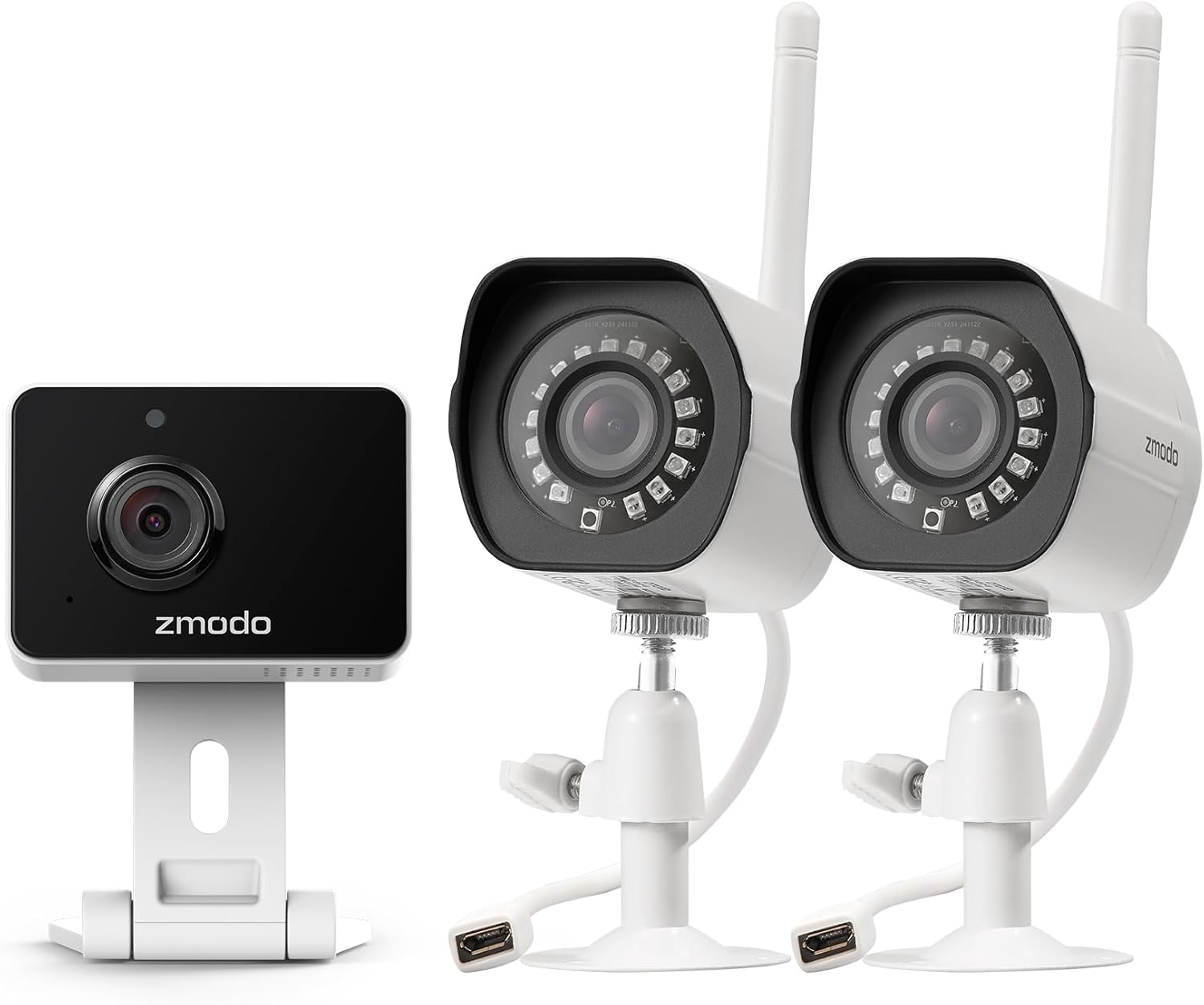
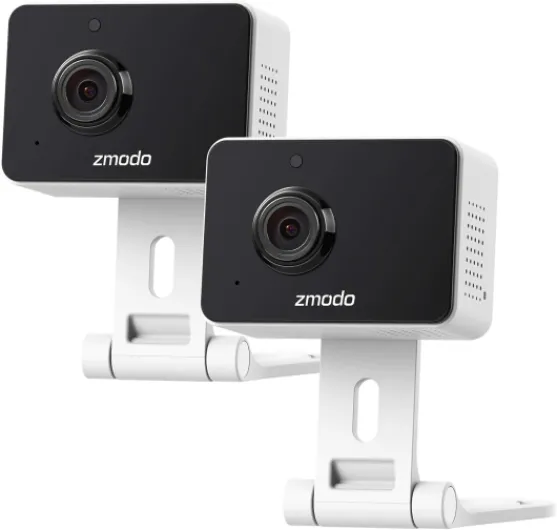
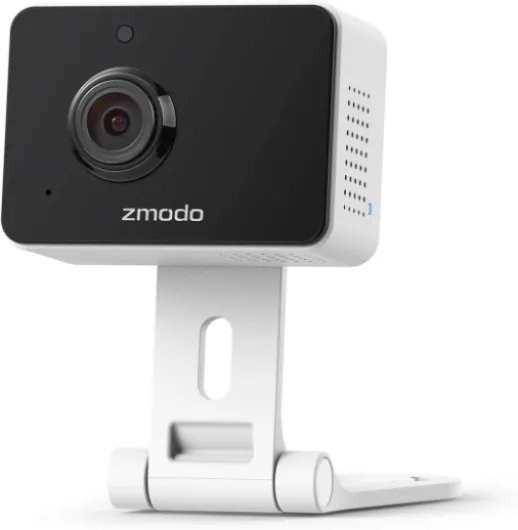
Zmodo cameras are designed to make home security both smart and easy. These devices offer real time video monitoring, cloud storage options, and smart alerts, giving you peace of mind whether you’re at home or away. With features like two-way audio, you can communicate through the camera, making it useful for checking on a room, a door, or even interacting with delivery personnel.
Key Features You Should Know
- Smart Security: Zmodo cameras use wifi to connect to your home network, allowing for real time video streaming and instant alerts to your app.
- Cloud Storage: Video footage can be saved to the cloud, making it easy to review past events. Some features may require a subscription, so it’s important to check what’s included.
- Privacy and Security: Zmodo’s privacy policy outlines how your data is handled. Always review this to understand how your video and audio data are protected.
- Easy Setup: The cameras are designed for quick installation, so you can secure any room or entry point without spending too much time or needing professional help.
- Mobile App: The Zmodo app lets you manage your account, receive real time alerts, and view live or recorded video from anywhere.
Choosing the Right Camera for Your Needs
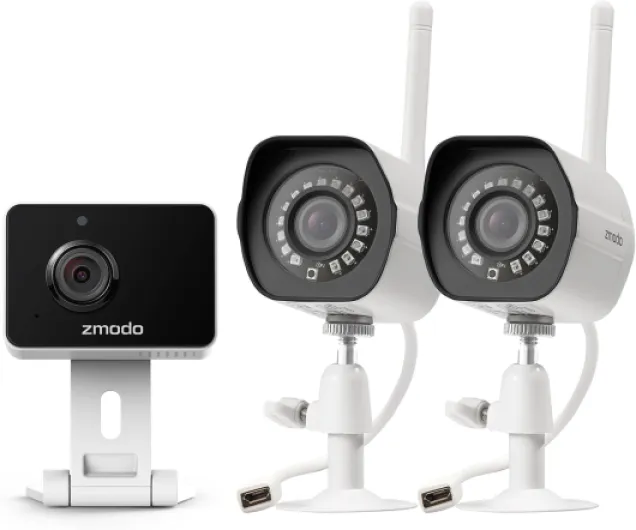
Whether you want to monitor your front door, a specific room, or even your RV, Zmodo offers a range of options. If you’re interested in mobile home security, check out this guide on choosing the right RV surveillance camera for more details.
Understanding the Role of the App and Subscription
To get the most from your Zmodo camera, you’ll need to create an account and download the app. Some advanced features, like extended cloud video storage or ad-free viewing, may require a subscription. The app also helps you manage privacy settings and customize alerts, so you’re only notified about real events that matter to you.
Why Zmodo is a Smart Choice
Zmodo cameras balance ease of use with advanced security features. They’re suitable for anyone looking to boost their home’s security without complicated setups. As you move forward, you’ll find that preparing for installation and configuring your camera is straightforward, making it a practical solution for real world needs.

Preparing for installation
Getting Ready for a Smooth Zmodo Camera Installation
Before you start setting up your Zmodo camera, a bit of preparation can save you time and help avoid common issues. Here’s what you need to consider for a smart and secure installation experience.- Choose the right location: Decide where you want to place your camera. Think about entry points like your door, main hallway, or any room that needs extra security. Make sure the area has a strong wifi signal for real time video streaming and alerts.
- Check your wifi network: Zmodo cameras rely on a stable wifi connection. Test the signal strength in your chosen spot. If the signal is weak, consider moving your router or using a wifi extender to ensure easy connectivity.
- Gather your tools and accessories: Most Zmodo cameras come with mounting hardware, but double-check the box to find all necessary parts. You’ll usually need a screwdriver and possibly a drill for wall mounting.
- Prepare your smartphone or tablet: Download the Zmodo app from your app store. You’ll need to create an account if you don’t have one. The app is essential for setup, video monitoring, and managing smart security features like cloud storage, alerts, and audio settings.
- Review privacy and security settings: Before installation, take a moment to read Zmodo’s privacy policy. Understanding how your video and audio data are stored—especially if you opt for a cloud subscription—can help you make informed decisions about your privacy.
- Plan for power supply: Make sure there’s an accessible power outlet near your chosen location. Some models offer battery options, but most require a constant power source for real time video and smart features.
For those considering mobile home or RV setups, you might want to explore options for RV surveillance cameras to ensure your security needs are fully covered, even on the move.
Taking these steps will make the installation process much easier and help you get the most out of your Zmodo camera’s features. This preparation also minimizes interruptions from ads or technical hiccups, letting you focus on real security improvements for your home.
Step-by-step guide to Zmodo camera setup
Placing Your Zmodo Camera for Maximum Coverage
Before you start, choose the right spot for your Zmodo camera. Think about the areas you want to monitor, like your front door, living room, or any room where security matters most. Make sure the camera has a clear view and isn’t blocked by furniture or decor. Good placement helps you get real time video and audio alerts when something happens.
Connecting to WiFi and Power
Plug your Zmodo camera into a power outlet. Most models work with standard outlets, making setup easy. Next, connect the camera to your home WiFi network. This step is crucial for smart security features, cloud video storage, and remote access through the app. Use a strong, stable WiFi signal to avoid interruptions in real time monitoring.
Syncing with Your Zmodo Account and App
Download the Zmodo app on your smartphone or tablet. Create an account if you don’t have one. Follow the in-app instructions to add your camera. The app will guide you through syncing your device, connecting to WiFi, and naming each camera (like "front door" or "living room"). This makes it easier to find and manage multiple cameras later.
Testing Video, Audio, and Alerts
Once your camera is online, test the video and audio quality. Walk in front of the camera to check if you receive real time alerts on your phone. Adjust the camera angle if needed. Explore features like two-way audio and smart motion detection. Some features may require a subscription for cloud storage or advanced alerts, so review the options in the app.
Ensuring Privacy and Security
Review the privacy policy in the Zmodo app and adjust your settings for maximum privacy. Turn off ads and unnecessary notifications if you prefer. Make sure your WiFi network is secure, and use a strong password for your Zmodo account. These steps help protect your video footage and personal data.
For more tips on choosing the right outlet camera for your home security needs, read this detailed guide.
Configuring the Zmodo app for remote access
Connecting Your Camera to the Zmodo App
Once your Zmodo camera is physically installed and powered up, it’s time to connect it to the Zmodo app. This step is crucial for enabling real time video monitoring, smart security features, and remote access. Start by downloading the Zmodo app from your device’s app store. Make sure your phone or tablet is connected to the same wifi network as your camera during the initial setup. Open the app and create an account if you haven’t already. This account will help you manage your devices, privacy settings, and cloud subscription options.
Pairing and Configuring for Remote Access
Follow the in-app instructions to add a new device. The app will guide you through scanning a QR code on your camera or entering its ID. Once paired, you can assign a name to your camera, such as "front door" or "living room," making it easy to find and manage multiple cameras. The app allows you to adjust video quality, enable audio, and set up smart alerts for motion or sound detection. These features help you save time and ensure you receive real time notifications when something happens at your door or in any room you’re monitoring.
Exploring Cloud and Privacy Features
Zmodo offers cloud storage options through a subscription, letting you review and book video clips securely. You can choose to store footage locally or in the cloud, depending on your privacy preferences. Always review the privacy policy within the app to understand how your data is handled. The app also provides easy access to advanced features, like setting up custom alert zones or adjusting the sensitivity of motion detection, which can help reduce unnecessary alerts and ads.
Tips for a Smooth App Experience
- Keep your app updated for the latest security and smart features.
- Regularly check your wifi connection to ensure uninterrupted video streaming.
- Explore the app’s help section to find solutions to common issues or to contact support.
- Review your cloud subscription status to avoid losing access to stored video clips.
By taking the time to configure your Zmodo app properly, you can maximize your home’s smart security and enjoy peace of mind with real time monitoring and alerts.
Troubleshooting common setup issues
Quick fixes for connection and wifi issues
If your Zmodo camera isn’t connecting to your wifi, double-check that your home network is stable and the camera is within range. Sometimes, interference from other smart devices can disrupt the signal. Try restarting your router and the camera. Make sure you’re using the correct wifi password and that your network is on a 2.4GHz band, as Zmodo cameras often don’t support 5GHz. If you still can’t connect, reset the camera by holding the reset button for about 10 seconds, then try the setup process again through the app.
Solving app and account problems
When you have trouble logging into your Zmodo account or the app isn’t responding, ensure your app is updated to the latest version. Clear the app cache if you’re on Android, or reinstall the app for a fresh start. If you forgot your password, use the password reset feature. For privacy and security, always use a strong password and review the privacy policy in the app settings. If you see unexpected ads or notifications, check your app permissions and notification settings to control what appears on your device.
Addressing video, audio, and alert concerns
If your camera isn’t recording video or the audio is unclear, check the camera’s placement. Make sure it’s not too far from the room you want to monitor and that there’s no obstruction near the lens or microphone. Adjust the camera angle for a better view of your door or main entry. For real time alerts, verify that notifications are enabled in both the app and your phone’s system settings. If you’re not receiving alerts, check your subscription status, as some features like cloud storage and advanced alerts may require an active subscription.
Cloud storage and smart security features
Sometimes, recorded clips don’t appear in your cloud account. Confirm your subscription is active and that your camera is linked to the correct account in the app. If you’re running out of cloud storage, consider upgrading your plan or downloading important video clips to your device. Explore the app’s smart security features, such as motion zones and scheduling, to optimize your camera’s performance and reduce unnecessary alerts.
- Always check for firmware updates in the app to keep your camera secure and up to date.
- Review privacy settings regularly to control who can access your video feed.
- Book a support session with Zmodo if you can’t find a solution in the help section.
Optimizing your Zmodo camera for better security
Improving Camera Placement for Maximum Coverage
To get the most out of your Zmodo camera, review the placement of each device in your home. Position cameras to cover key entry points like the door, garage, and main living areas. Avoid blind spots by adjusting the angle and height. Placing cameras in a room with a clear view of windows and doors helps capture real time video of any activity.
Fine-Tuning Motion Detection and Alerts
Use the app to adjust motion sensitivity. Too many alerts can be overwhelming, but too few may cause you to miss important events. Test different settings to find the right balance for your needs. Enable smart alerts to receive notifications on your phone, so you can respond quickly if something unusual happens.
Enhancing Audio and Video Quality
Check your wifi connection strength in each camera location. A strong signal ensures smooth video streaming and clear audio. If you experience lag or poor quality, consider moving your router or adding a wifi extender. Regularly clean the camera lens for the best image quality.
Securing Your Account and Protecting Privacy
Update your account password regularly and use two-factor authentication if available. Review the privacy policy of Zmodo to understand how your data is handled. Disable audio recording in private areas if privacy is a concern. Make sure only trusted users have access to your camera feeds through the app.
Making the Most of Cloud Storage and Subscription Features
Consider a cloud subscription for extended video storage and advanced features. Cloud storage lets you review footage from any time, even if the camera is damaged or stolen. Compare the available plans to find one that fits your needs and budget. Remember, some features like smart security alerts or longer video history may require a subscription.
- Test your system regularly to ensure all features work as expected.
- Review and adjust notification settings to avoid missing real time alerts.
- Check for firmware updates in the app to keep your camera secure and up to date.
- Be cautious with ads or offers in the app, and verify their legitimacy before purchasing additional services.