
Understanding motion activated cameras for indoor use
How motion activated cameras work indoors
Motion activated cameras have become a popular choice for indoor security, offering a smart way to monitor your home. These cameras use motion sensors to detect movement within their field of view. When the sensor picks up activity, the camera starts recording video or sends alerts to your phone via an app. This approach helps save storage space and ensures you only get notified when something actually happens.
Types of motion detection technologies
Most indoor security cameras rely on either passive infrared (PIR) sensors or advanced video analytics for motion detection. PIR sensors detect heat signatures, making them effective for spotting people or pets. Video analytics, on the other hand, use software to analyze changes in the video feed, allowing for more customizable detection zones and fewer false alarms. Some models, like the DS-2CD2387G2P-LSU/SL, combine both methods for enhanced accuracy.
Comparing indoor camera options
There are many indoor security cameras available, from affordable wireless cams to advanced smart cameras with cloud storage and night vision. Brands like Tapo, Google Nest, and Amazon offer a range of models with features such as dual band Wi-Fi, color night vision, and battery powered operation. When you compare options, consider whether you need local storage, cloud storage, or both, and check if the camera integrates with Alexa, Google, or other smart home systems.
- Field of view: Wider angles cover more area, reducing blind spots.
- Night vision: Essential for monitoring in low light or at night.
- Motion sensor sensitivity: Adjustable settings help reduce false alerts.
- App support: Look for user-friendly apps for real-time alerts and remote viewing.
Why choose motion activated cameras for indoor security?
Indoor motion activated cameras offer peace of mind by providing real-time video and alerts when unexpected movement is detected. They are ideal for intruder intervention, monitoring kids or pets, and checking in on your home while away. With features like wireless connectivity, cloud or local storage, and integration with smart assistants, these cameras are a flexible solution for modern security needs.
Key features to look for in an indoor motion activated camera
Essential Capabilities for Reliable Indoor Monitoring
When comparing indoor security cameras, it’s important to focus on features that directly impact motion detection, video quality, and overall usability. Not all motion activated cameras are created equal, so understanding what sets them apart helps you make a more informed choice for your home security needs.
- Motion Detection Technology: Look for cameras with advanced motion sensor capabilities. Some models, like the Tapo or Google Nest Cam, offer customizable motion zones and sensitivity settings. This reduces false alerts from pets or shadows, making your notifications more relevant.
- Video Quality and Night Vision: High-definition video (at least 1080p) ensures clear footage. For low-light conditions, color night vision or infrared night vision is essential. Some indoor cameras, such as those found on Amazon, provide both options for better visibility after dark.
- Field of View: A wide field view allows a single camera to cover more area. Compare models to find those with at least 120° viewing angles. Pan and tilt features can further enhance coverage, reducing blind spots.
- Wireless and Battery Powered Options: Wireless indoor cameras are easier to install and relocate. Battery powered models offer flexibility, especially in areas without convenient outlets.
- Smart Home Integration: Compatibility with Alexa, Google Assistant, or Apple HomeKit enables voice control and seamless integration with other smart devices. This can enhance your overall security system and make daily use more convenient.
- Storage Solutions: Decide between local storage (microSD cards) and cloud storage. Local storage keeps your video footage private, while cloud storage offers remote access and backup. Some brands, like Tapo and Nest Cam, provide both options.
- App Experience: A user-friendly app is crucial for real-time alerts, live view, and easy playback. Check app reviews on Google Play or the App Store to compare reliability and features.
- Intruder Intervention Features: Some sensor cameras include sirens, two-way audio, or even spotlight functions to deter intruders in real time.
- Dual Band Wi-Fi Support: Dual band cameras (2.4GHz and 5GHz) offer more stable connections and less interference, which is especially useful in busy home networks.
- Pack Save and Bundles: If you need coverage for multiple rooms, look for multi-camera packs. These often provide better value and ensure consistent features across your indoor security setup.
For a deeper dive into what makes certain models stand out, including advanced motion detection and smart features, check out this review of a top-rated indoor security camera.
As you consider these features, remember that placement and privacy (covered in other sections) are just as important for maximizing your camera’s effectiveness and protecting your household’s privacy.
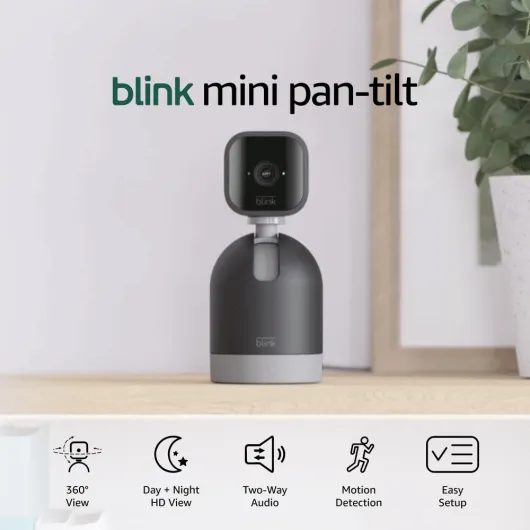
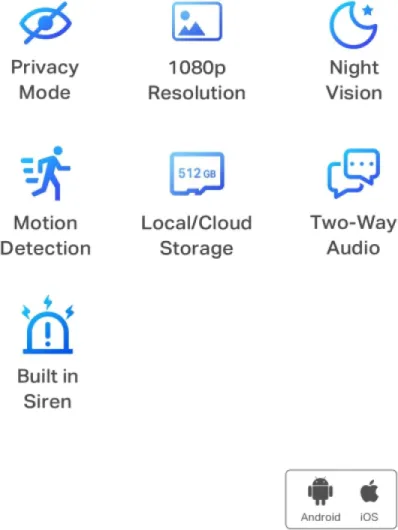
- + Rotating capability
- + Two-way audio feature
- + HD video quality
- + Motion detection
- + Works with Alexa

Placement tips for optimal indoor coverage
Finding the Best Spots for Motion Detection
Proper placement of your indoor security camera is essential for effective motion detection and reliable video coverage. The right spot ensures your camera’s sensor captures relevant activity, whether you’re using a Tapo cam, Google Nest Cam, or another smart indoor camera. Here are some practical tips to help you get the most out of your motion activated cameras:
- Entry Points: Position cameras near main doors, hallways, and windows. These areas are common access points for intruders and offer a clear field of view for motion detection.
- Height Matters: Mount your camera at a height of 6 to 8 feet. This angle maximizes the camera’s view and improves the accuracy of the motion sensor, reducing false alerts from pets or moving curtains.
- Avoid Obstructions: Make sure nothing blocks the camera’s lens or sensor. Furniture, plants, or decorations can interfere with detection and video quality.
- Consider Lighting: Place cameras where there’s consistent lighting. For night vision, ensure the area is within the camera’s infrared range. Some models offer color night vision for clearer footage in low light.
- Privacy Zones: Many smart security cameras allow you to set up privacy zones in the app. Use this feature to block out sensitive areas, like bathrooms or bedrooms, while still monitoring key spaces.
- Compare Indoor and Outdoor Needs: While indoor cameras focus on living spaces, you might want to compare options for areas without WiFi or for outdoor coverage, depending on your security goals.
Maximizing Coverage with Smart Features
Modern indoor security cameras come with features like dual band WiFi, wireless installation, and integration with Alexa or Google Assistant. Use the camera’s app to fine-tune motion detection zones and sensitivity. Some sensor cameras offer local storage or cloud storage, letting you review footage anytime. If you have a battery powered cam, check placement for easy recharging. For those using a pack save bundle, coordinate camera angles to avoid overlapping fields of view and maximize your home’s security coverage.
Privacy considerations with indoor cameras
Protecting Your Privacy with Indoor Motion Cameras
When installing a motion activated indoor security camera, privacy should be a top priority. These cameras, whether you choose a wireless cam, a smart tapo model, or a battery powered sensor, are designed to keep your home safe—but they can also raise concerns about personal privacy if not managed carefully.- Control Access: Always use strong passwords for your security camera app and enable two-factor authentication if available. This helps prevent unauthorized access to your video feeds, whether you use local storage or cloud storage.
- Choose the Right Storage: Decide between local storage (like SD cards) and cloud storage. Local storage keeps your footage in your home, while cloud options from brands like Google Nest or Amazon may offer more convenience but require trust in their security measures.
- Manage Camera Placement: Avoid placing indoor cameras in private spaces such as bedrooms or bathrooms. Instead, focus on common areas where motion detection is most valuable for security.
- Review App Permissions: Many smart cameras, including those compatible with Alexa Google or Google Home, require app permissions. Regularly check and limit these permissions to only what is necessary for motion detection and notifications.
- Disable Audio Recording: Some indoor security cameras offer audio recording. If privacy is a concern, look for models where you can turn off this feature in the app settings.
- Regularly Update Firmware: Keep your camera's firmware up to date. Updates often include important security patches that protect your video and motion sensor data from vulnerabilities.
Integrating motion activated cameras with smart home systems
Making Your Camera Work with Your Smart Home
Integrating a motion activated indoor security camera with your smart home system can make monitoring easier and more efficient. Many modern cameras, such as Tapo or Google Nest Cam, are designed to connect with popular platforms like Alexa or Google Home. This allows you to control your camera, view live video, and receive motion detection alerts directly through your smart devices.- Compatibility: Before purchasing, compare which smart home systems the camera supports. Some models work seamlessly with Alexa Google, while others are optimized for Google Nest or other platforms.
- App Integration: Most indoor security cameras come with their own app, but integrating with your smart home app can centralize control. For example, you can set up routines so your wireless indoor camera automatically arms when you leave the house.
- Voice Control: With integration, you can use voice commands to view your camera’s live feed on smart displays or TVs. This is especially useful for quick checks without reaching for your phone.
- Automation: Advanced motion sensor cameras can trigger other smart devices. For instance, if motion detection is triggered at night, your smart lights can turn on automatically for intruder intervention.
- Cloud and Local Storage: Consider how your chosen system handles video storage. Some cameras offer cloud storage, while others support local storage for privacy. Make sure your smart home hub can access recorded footage when needed.
Tips for a Smooth Integration
- Use dual band Wi-Fi for a stable connection, especially if you have multiple security cameras or other smart devices running simultaneously.
- Check if your camera supports battery powered operation for flexible placement, or if it needs to be wired.
- Explore features like color night vision, field view adjustments, and pack save options for multi-camera setups.
- Regularly update your camera’s firmware through the app to maintain security and compatibility with your smart home system.
Troubleshooting common issues with indoor motion activated cameras
Solving Detection and Notification Problems
If your indoor security camera isn’t picking up motion or sending alerts, start by checking the motion sensor settings in the app. Many smart cameras, like Tapo or Google Nest Cam, allow you to adjust the motion detection sensitivity. Too low, and you might miss important activity; too high, and you’ll get too many false alerts. Make sure your camera’s field of view covers the intended area and isn’t blocked by furniture or décor. For wireless cameras, ensure the battery is charged or the device is properly plugged in.Addressing Video Quality and Night Vision Issues
Blurry or dark footage can be frustrating. Compare your camera’s video settings and adjust the resolution if possible. Some indoor cameras offer color night vision, while others switch to infrared. Clean the lens regularly and check for any obstructions. If your camera supports dual band Wi-Fi, try switching bands for a more stable connection. For night vision, make sure there are no reflective surfaces nearby that could interfere with the sensor.Connectivity and App Troubleshooting
If your camera keeps disconnecting from the network or the app isn’t responding, check your Wi-Fi signal strength. Cameras placed too far from the router may struggle to maintain a connection, especially battery powered or wireless models. Restart your router and camera, and update the firmware via the app. If you use cloud storage or local storage, confirm there’s enough space for new recordings. For integration issues with Alexa, Google, or other smart systems, ensure all devices are on the same network and permissions are enabled.- Check for app updates regularly to access new features and bug fixes.
- Review privacy settings to ensure your footage is secure, especially if using cloud storage.
- For pack save deals, verify each camera is correctly added to your account for full coverage.